Getting started
From a new account to a stamped PPWR package in a working day, most of which is waiting for the supplier.
1. Create your account
Go to pasera.app. The sign-in page is the front door. Choose Sign up and create your account with email and password, or continue with Google.
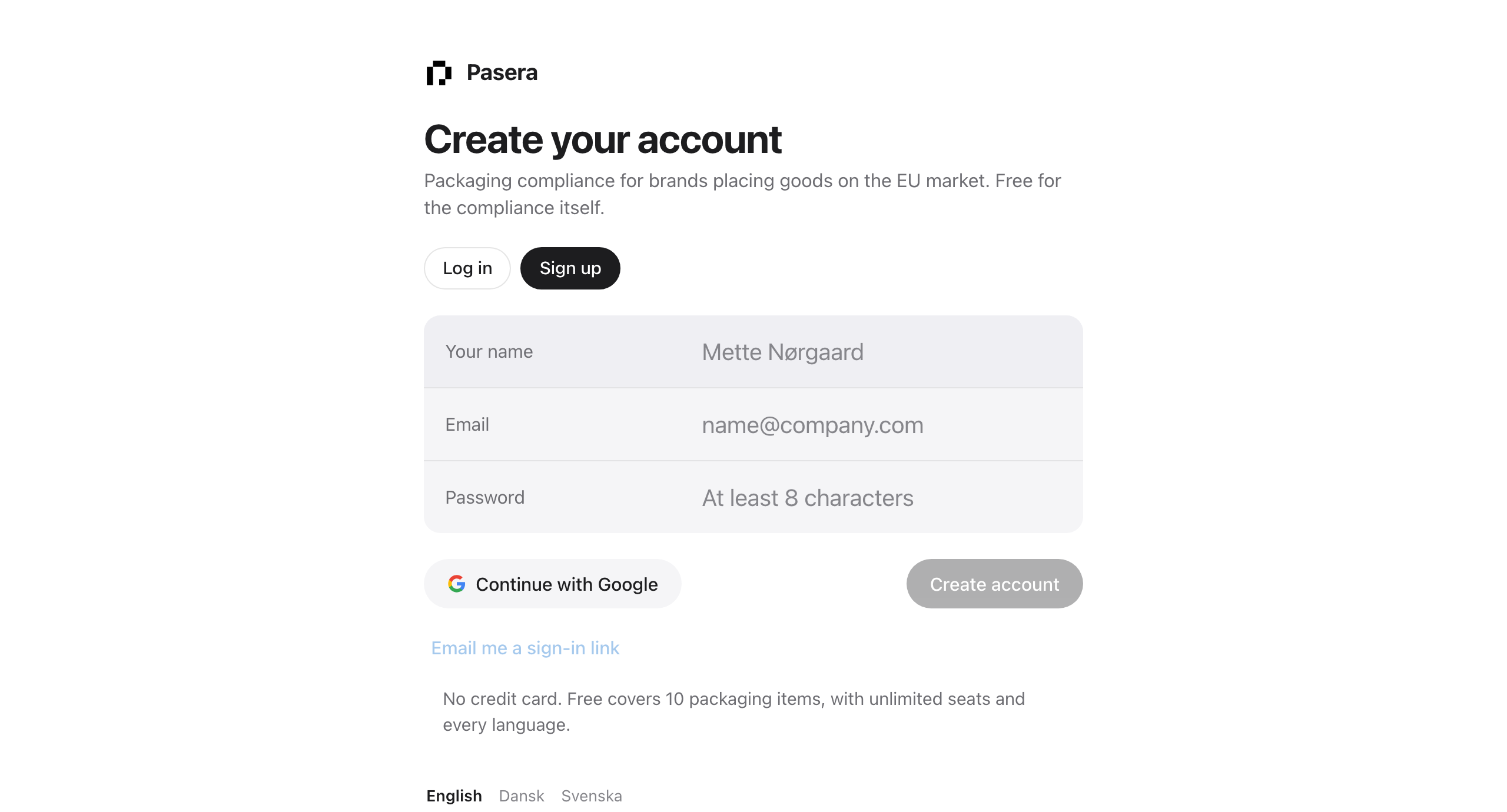
The next screen asks for your company. Give it the name you trade under; the legal details come in the guided setup.
2. The guided setup
A brand with nothing in it is taken through four short steps. Each one is a real record, each one can be skipped and done later.
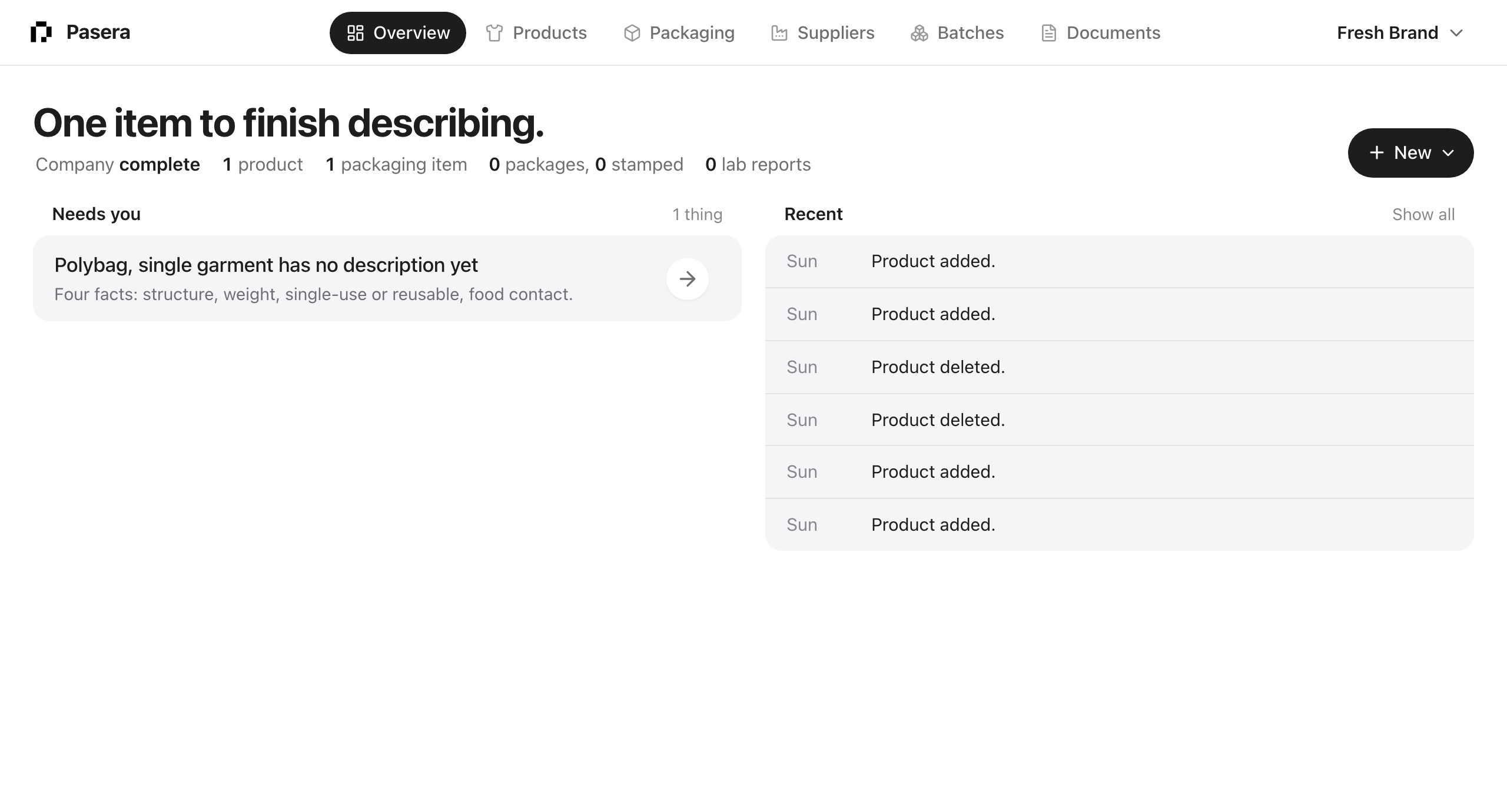
- Company. Legal name, registered address in an EU member state, and who signs. These six facts go on every declaration of conformity.
- Product. One product to start with, optional.
- Packaging. The carton, polybag, mailer bag or hangtag it ships in. This is the thing that gets a package and a stamp.
- Supplier. The factory you buy from, with or without an email address.
At the end, “Describe” opens the new packaging item on step two. If you skip everything, the Overview offers a “Guided setup” button to come back.
3. Finish the packaging item
The item has six steps shown as a strip under its name. Work left to right; the Overview also lists the open steps as rows you can click.
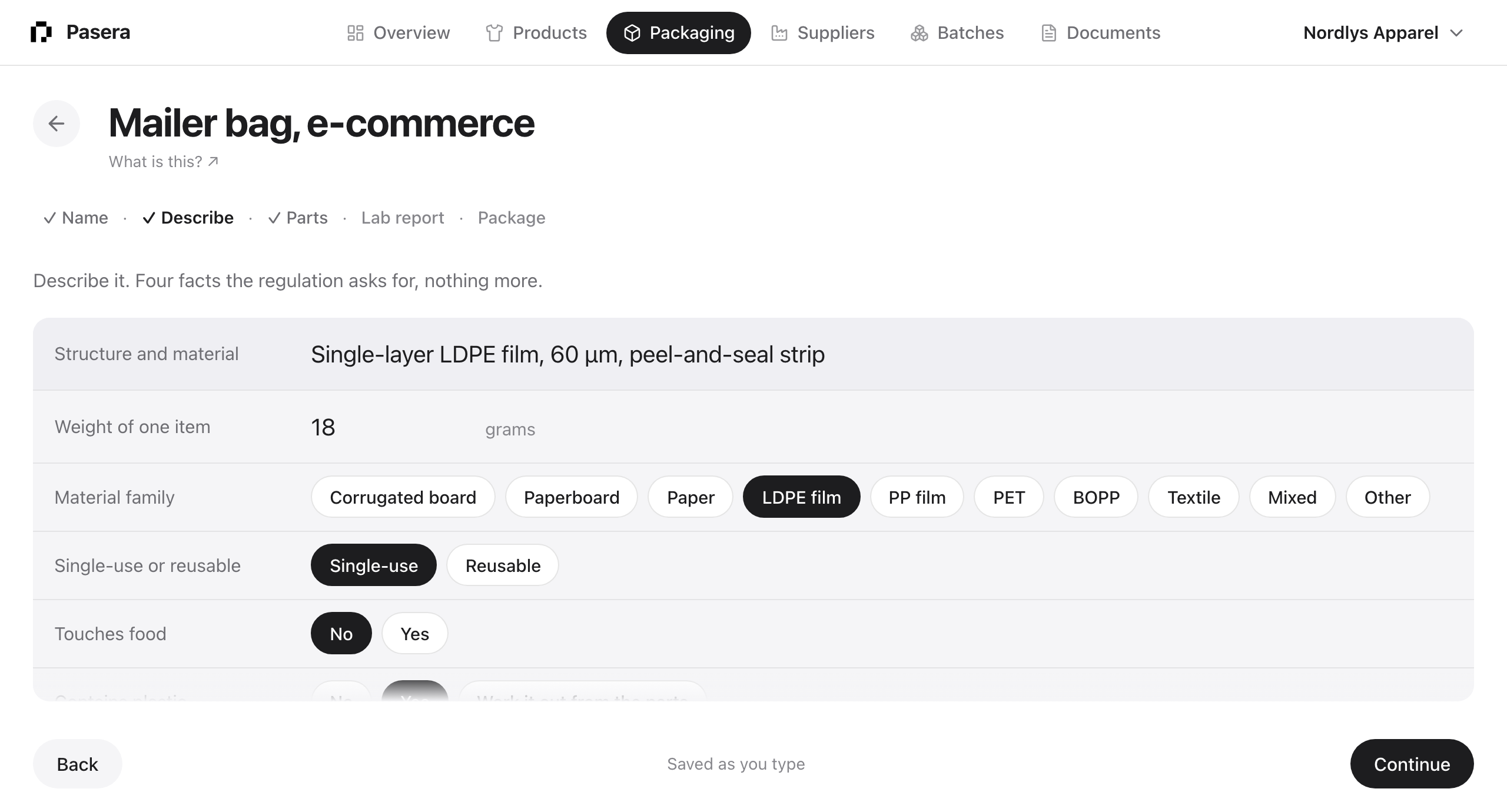
Describe it, list its parts, attach the lab report or ask the supplier for it, generate the package. See Packaging items and the PPWR package.
4. Send it to the supplier
On the Package step, Send to supplier creates one link for the item and emails it, in English or Chinese. The supplier uploads any missing report, reads the declaration and the technical file, and stamps. You see Sent, Opened, Change requested and Stamped on the item and on the Overview, and Pasera reminds them every five days.
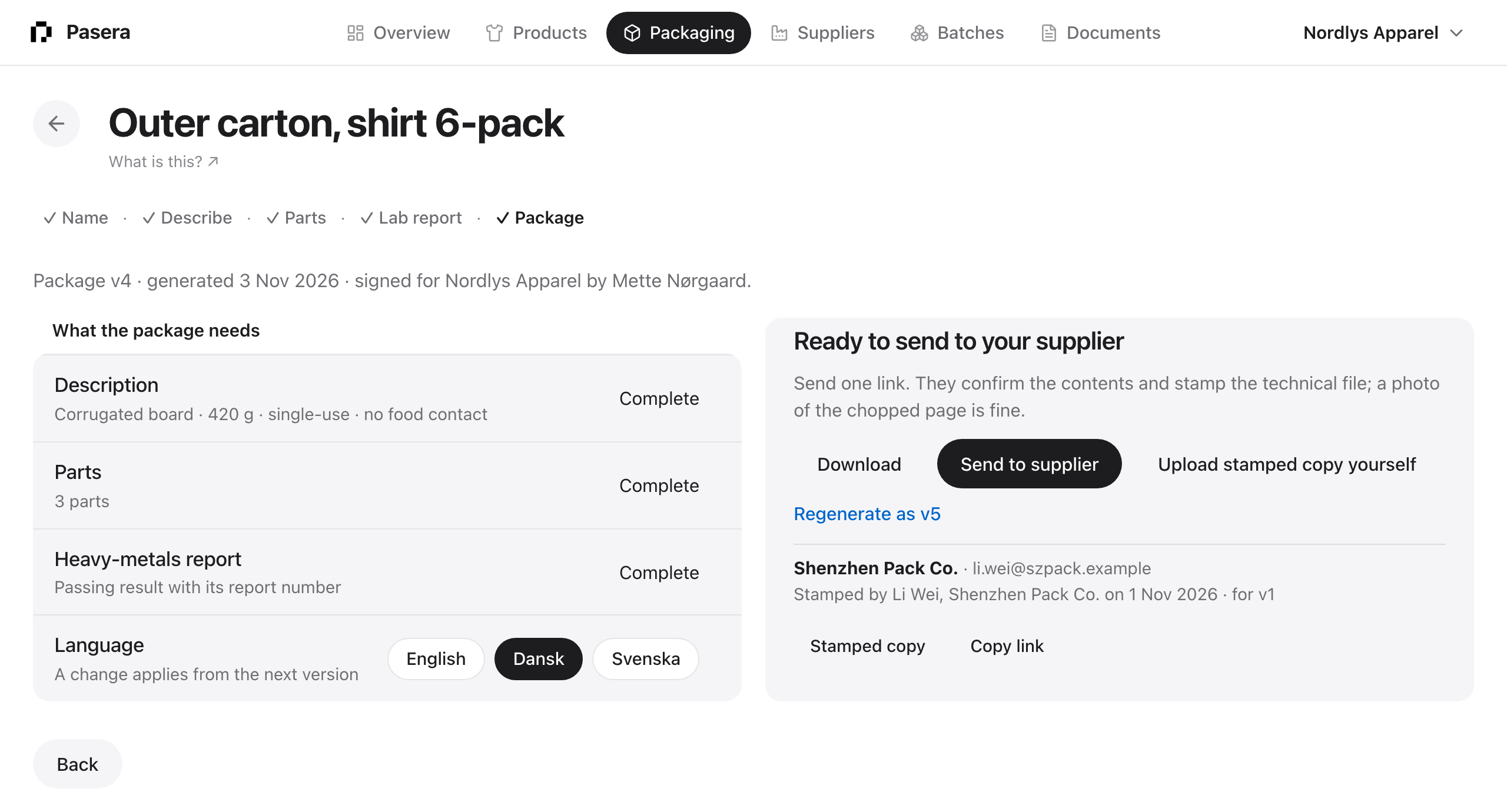
When they stamp, you get an email, the item reads Stamped, and the stamped copy sits in Documents next to the package.
5. Keep going
Add the next item from + New on the Overview, or drop a PDF anywhere in the app and say what it is. Products, batches and passports can wait until you need them.